Install and Open MyPassRecovery on macOS
MyPassRecovery for macOS is currently distributed without Apple notarization. macOS Gatekeeper may therefore block the downloaded app or display an alert such as “MyPassRecovery” is damaged and can't be opened. You should move it to the Trash. On a Chinese-language Mac, the same warning may appear as “MyPassRecovery” 已损坏,无法打开。您应该将它移到废纸篓。 A similar alert can also mean that an app is genuinely incomplete, corrupted, or modified, so do not bypass the warning automatically.
Safety Check Before You Continue
- Download MyPassRecovery only from the official MyPassRecovery website or a download link supplied directly by MyPassRecovery support.
- Delete unexpected copies received through email, chat, forums, file-sharing sites, or search advertisements.
- If MyPassRecovery publishes an SHA-256 checksum, compare it with the downloaded installer before opening it:
shasum -a 256 ~/Downloads/MyPassRecovery.dmg
- If the warning says the app will damage your computer, macOS reports known malware, or the file has an unexpected name or size, stop and contact MyPassRecovery support. Do not run the commands below.
Apple explains that macOS checks Developer ID signatures and notarization, and warns that overriding these protections can expose a Mac to malware. See Apple's guidance on safely opening Mac apps and Apple's explanation of modified or damaged apps.
Recommended Method: Open Anyway in System Settings
After confirming that the app came from the official source:
- Drag
MyPassRecovery.appinto the Applications folder. - Try to open it once, then close the warning.
- Choose Apple menu > System Settings > Privacy & Security.
- Scroll to Security, find the message about MyPassRecovery, and click Open Anyway.
- Enter the administrator password or use Touch ID, then confirm Open.
Apple notes that the Open Anyway option is normally available for about one hour after an attempted launch. This creates an exception only for that app. See Open a Mac app from an unknown developer.
If macOS Still Says the App Is Damaged
Use this fallback only after MyPassRecovery support confirms that the download is authentic and intact. Open Terminal and first check whether the app has a quarantine attribute:
xattr -p com.apple.quarantine "/Applications/MyPassRecovery.app"
If the attribute is present, remove only that attribute from this specific app bundle:
xattr -dr com.apple.quarantine "/Applications/MyPassRecovery.app"
If the downloaded app bundle has a different name, replace the quoted path with its actual .app path. To avoid typing mistakes, type xattr -dr com.apple.quarantine (including the final space), drag the app from Finder into the Terminal window, and then press Return.
Then Control-click MyPassRecovery.app in Finder, choose Open, and confirm the prompt. The xattr -d option removes a named extended attribute and -r applies the operation within the app bundle; see the macOS xattr manual.
Do not use sudo spctl --master-disable, do not disable Gatekeeper globally, and do not clear quarantine attributes from the whole Downloads or Applications folder. If the targeted command does not solve the problem, delete the app, download a fresh copy from the official source, and contact MyPassRecovery support.
macOS Interface and Screenshot Note
The screenshots below are reused from the Windows guide because the MyPassRecovery document-processing workflow is the same: sign in, select the protected file, wait for analysis, submit or save the result, and verify the output. Window controls, file-picker appearance, fonts, and paths may look different on macOS. Follow the labels in your installed macOS build when a screen differs.
Page Summary
When an encrypted PDF has an open password, you must enter the correct password before you can view the file. If the PDF password is forgotten, MyPassRecovery Desktop can help with PDF password recovery. This guide shows how to import the protected PDF, let the software analyze password recovery difficulty, submit the password recovery task, and use the recovered password to open the PDF file.
What Is PDF Password Recovery?
PDF password recovery means finding the open password required to unlock an encrypted PDF. A PDF open password is different from a PDF permission password: an open password blocks the file before it opens, while a permission password may allow viewing but limit editing, printing, or copying.
When MyPassRecovery Desktop detects an open password on a PDF file, it starts the password recovery workflow. The password recovery process may analyze the PDF encryption type, estimate recovery difficulty, and return a possible password result after processing.
When to Use This Guide
Use this guide when you need PDF password recovery for a file that asks for a password before opening.
- The PDF asks for a password before it opens.
- The original PDF open password has been forgotten.
- The PDF content needs to be viewed, but the password is no longer available.
- You want to use MyPassRecovery Desktop for password recovery and open the PDF with the recovered password.
When This Guide Does Not Apply
If the PDF opens normally but editing, printing, or copying is blocked, it is usually a PDF permission removal case rather than password recovery. If the PDF is damaged, incomplete, or locked by operating system permissions, password recovery may not solve the problem.
Before You Start
Before starting password recovery, prepare the software account and the encrypted PDF. Keep the file on a local drive and make sure it is not open in Adobe Acrobat, WPS PDF, or another viewer.
- Install MyPassRecovery Desktop. The free quick check does not require sign-in; sign in only when submitting a subscribed cloud-recovery task.
- Prepare a PDF file with an open password.
- Keep the network connection stable because password recovery communicates with the service.
- Close any PDF viewer that is using the file before importing it.
Operation Steps
Step 1: Open MyPassRecovery Desktop
Open MyPassRecovery Desktop and confirm that the app is online; sign in only if you are submitting a subscribed cloud-recovery task. Password recovery requires the client to connect to the service and read the PDF file, so check the message center for login errors, network issues, or service pause messages before starting.
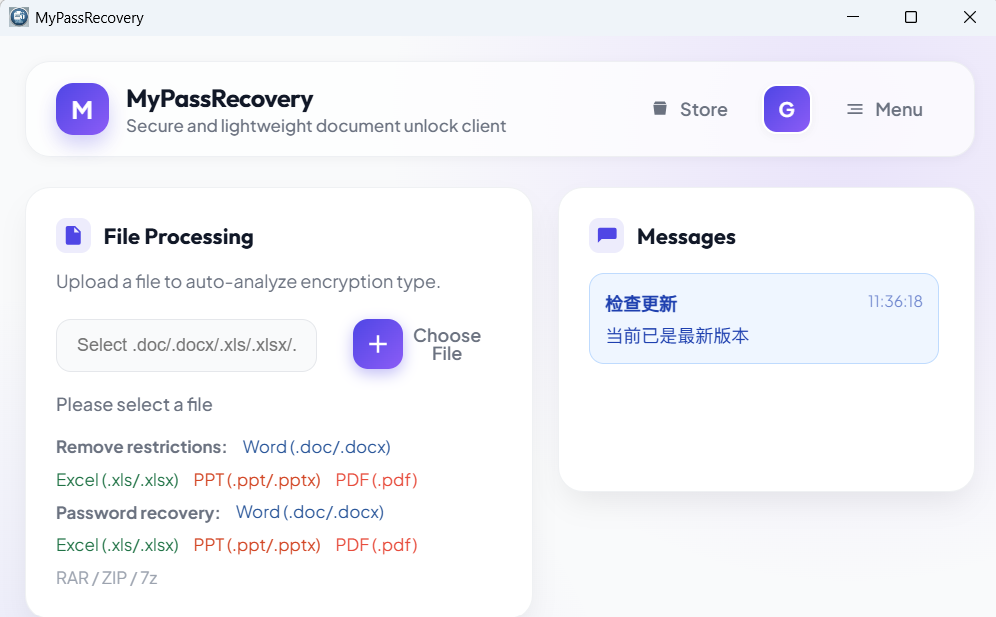
Step 1: Open MyPassRecovery Desktop
Step 2: Import the PDF for Password Recovery
In the Document Processing area, click the file selection button and choose the PDF that needs password recovery. After import, the software reads the file path and checks whether the PDF has an open password.
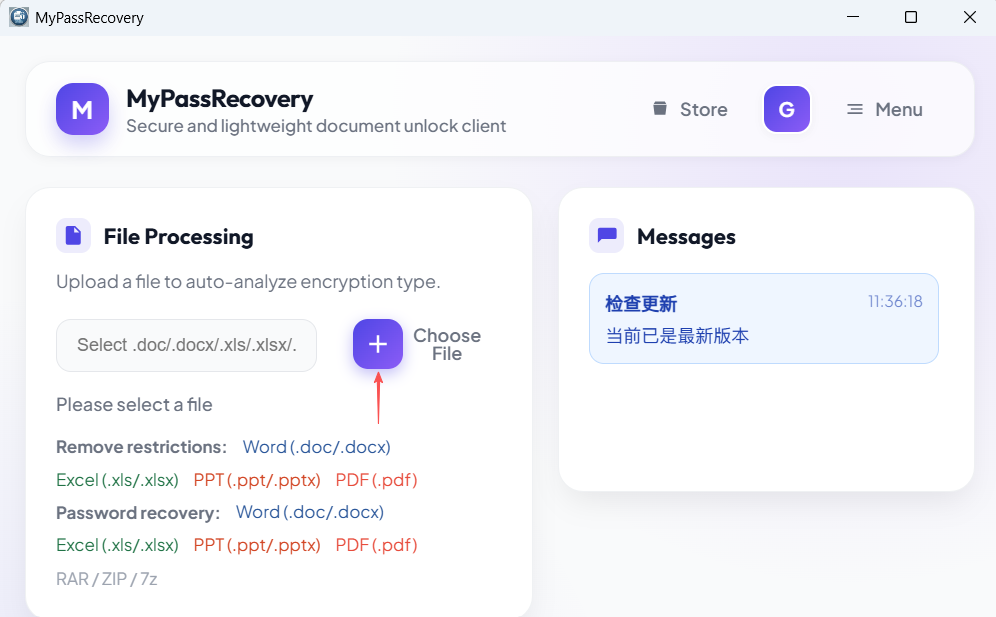
Step 2: Import the PDF for password recovery
Step 3: Wait for Password Type and Difficulty Analysis
After the file is imported, MyPassRecovery Desktop analyzes the PDF password type and password recovery difficulty. If the file is protected by an open password, the software should enter the password recovery workflow and show the related task status.
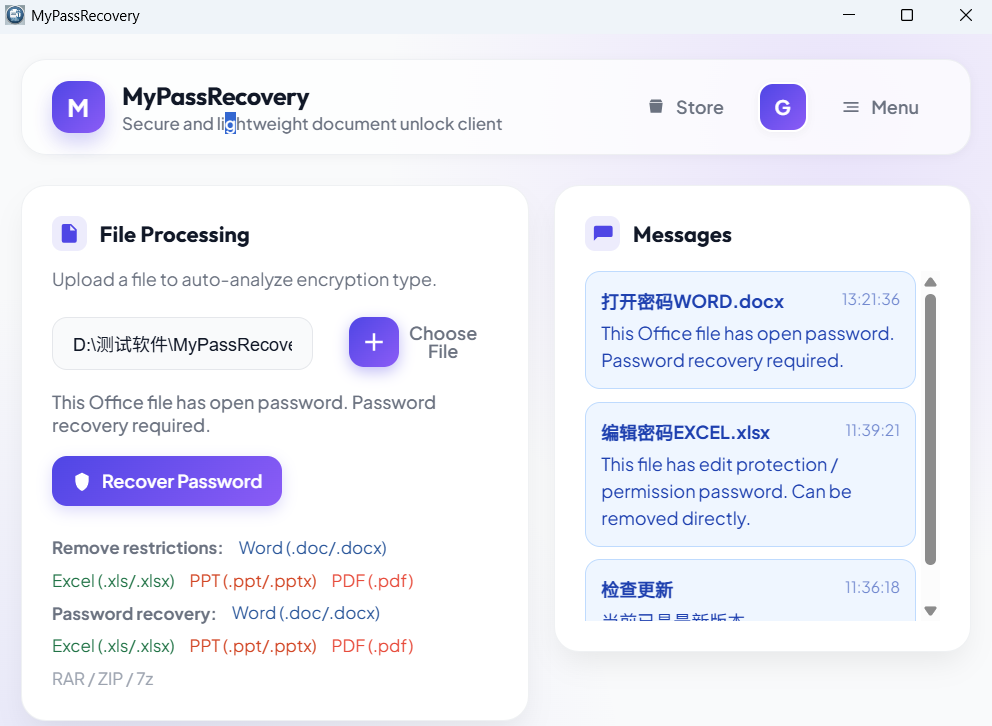
Step 3: Analyze PDF password type and password recovery difficulty
Step 4: Submit the Password Recovery Task
After the software confirms the PDF open password case, follow the interface prompt to submit the password recovery task. Password recovery may take time depending on password complexity, PDF encryption, and service status. Keep the client online while waiting.
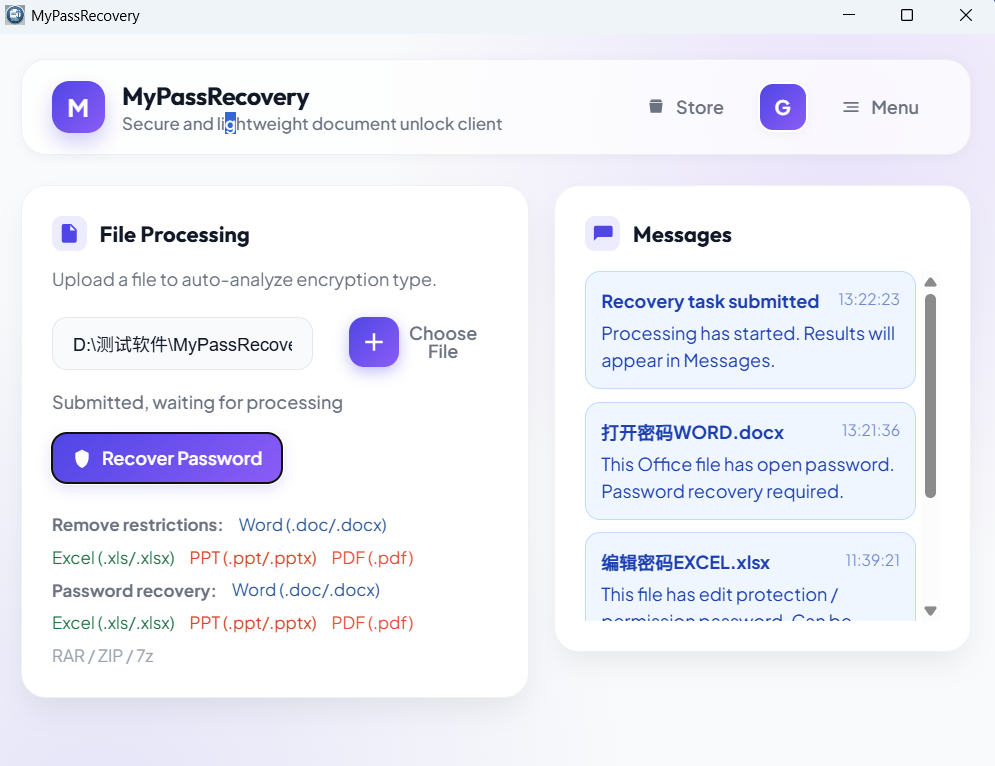
Step 4: Submit the password recovery task
Step 5: View the Password Recovery Result
When password recovery is complete, check the result area in the software. Copy or record the recovered password, reopen the original PDF, and enter the recovered password in the password box. If the PDF opens, the password recovery workflow is complete.
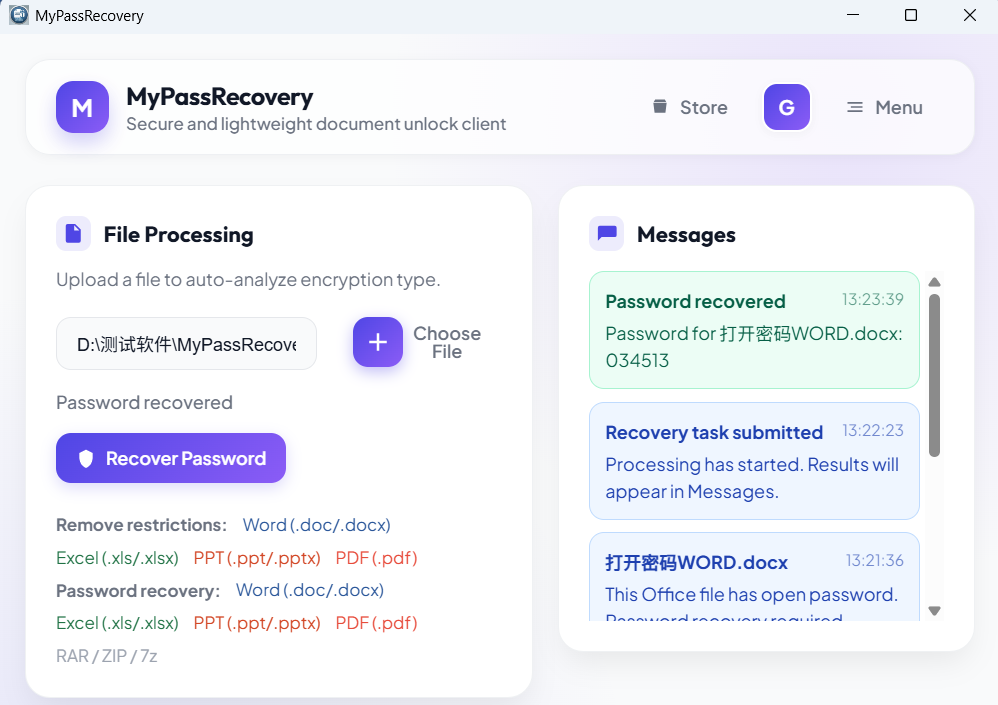
Step 5: View the password recovery result and open the PDF
Result
After password recovery is complete, MyPassRecovery Desktop usually displays the password that can open the PDF. Use that password to open the original encrypted PDF. Password recovery does not automatically modify the PDF or remove its protection; it helps you recover the password required to open the file.
Usage Tips
- Only use password recovery on PDF files you are authorized to process.
- Keep the network stable and do not close MyPassRecovery Desktop during password recovery.
- After receiving the recovered password, open the PDF immediately to confirm that the password works.
- If you do not want to enter the password again later, open the PDF and save a new copy with your preferred protection settings.